Create matrix
A matrix is a structural element with a user oriented stiffness matrix.
When you click on the Add matrix button without selection, the left panel shows a message :
Select 1 node
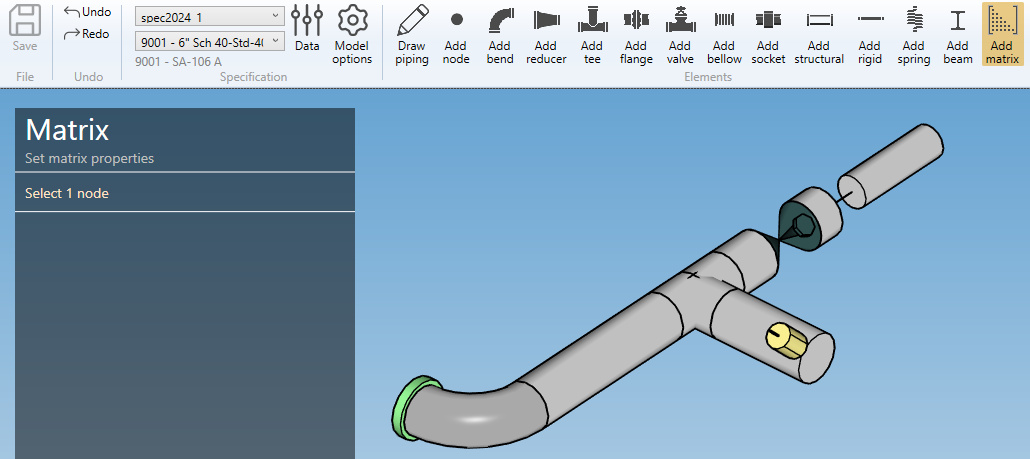
The selection mode is automatically set to POINT. You can so directly select a node.
1. Create a matrix
- Select a node.
- Click the Add matrix button.
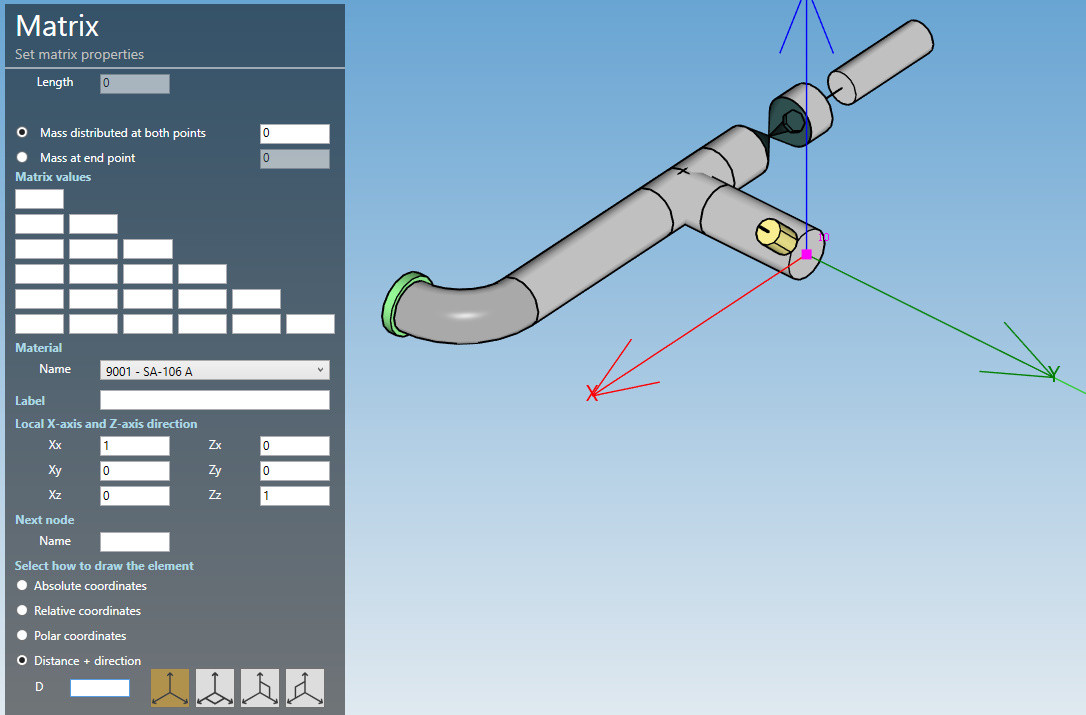
MATRIX PROPERTIES :
| Property | Unit Metric | Unit USA |
|---|---|---|
| Length | m | ft |
| Mass | ton | kips |
MATRIX VALUES :
| Metric | |||||
|---|---|---|---|---|---|
| kN/mm | |||||
| kN/mm | kN/mm | ||||
| kN/mm | kN/mm | kN/mm | |||
| kN.m/mm | kN.m/mm | kN.m/mm | kN.m/rad | ||
| kN.m/mm | kN.m/mm | kN.m/mm | kN.m/rad | kN.m/rad | |
| kN.m/mm | kN.m/mm | kN.m/mm | kN.m/rad | kN.m/rad | kN.m/rad |
| USA | |||||
|---|---|---|---|---|---|
| kips/in | |||||
| kips/in | kips/in | ||||
| kips/in | kips/in | kips/in | |||
| ft.kips/in | ft.kips/in | ft.kips/in | ft.kips/rad | ||
| ft.kips/in | ft.kips/in | ft.kips/in | ft.kips/rad | ft.kips/rad | |
| ft.kips/in | ft.kips/in | ft.kips/in | ft.kips/rad | ft.kips/rad | ft.kips/rad |
ATTENTION : a warning will be raised if the matrix is not invertible !
To know the UNIT of a property, just let the mouse over the cell.
The length must be defined by the orientation tool.
MATERIAL :
Select the material of the matrix element.
Click here for more information about the materials definition.
X-AXIS and Z-AXIS DIRECTION :
You can define the X-axis and Z-axis vectors by defining Xx, Xy, Xz and Zx, Zy, Zz in global coordinates.
The directions can be different than the orientation of the element.
LABEL :
You can define a label to this element. The labels are shown with the node names view button.

NEXT NODE :
You can set the next extremity node name of the element. If blank, the software will define it automatically. The software will also check that the name doesn’t already exist.
You can then define the second point of the matrix thanks to the Orientation tool.
Click here for more information about the orientation tool.
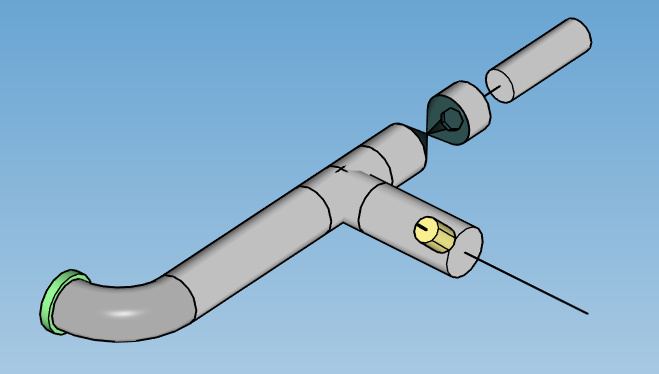
Create the matrix element (represented by a black line) :
2. Modify/Remove a matrix
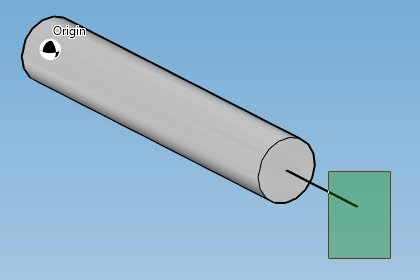
Change the Selection mode to ELEMENT and select a matrix element by dragging a selection rectangle :
Click here for more information about the selection tool.
You can change the properties of the selected matrix (except the length).
Click on the Modify button to change the selected matrix with new properties.
You can undo this command.
Click on the Remove button to delete the selected matrix.
You can undo this command.
3. Insert a matrix at an intermediate node
Click on the Add matrix button and select an intermediate node between 2 elements.
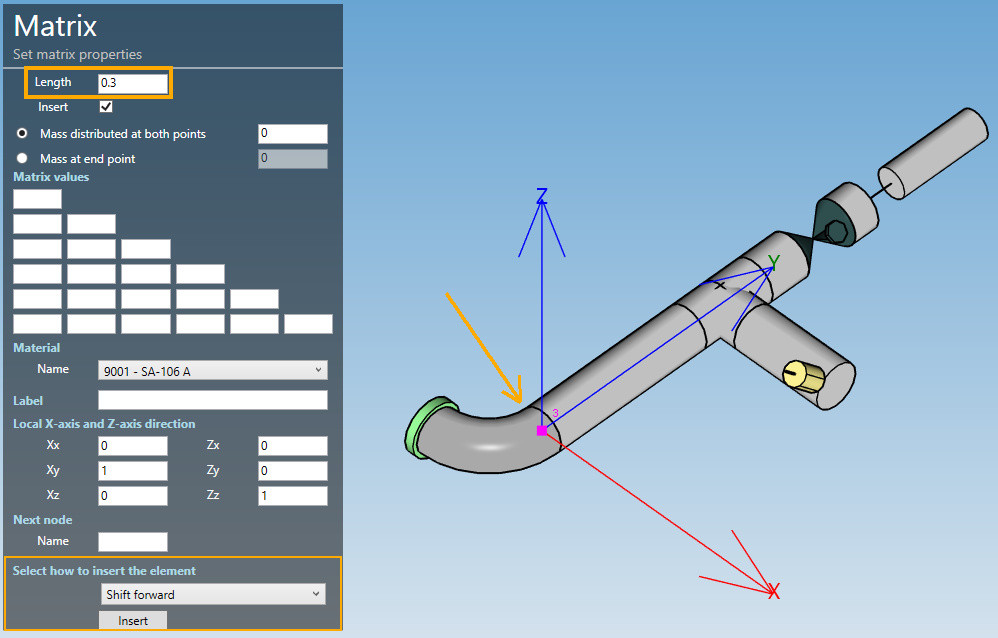
Fill the properties (see §1) and select the insertion mode :
- Shift forward
- Shift backwards
- Reduce the next element
- Reduce the previous element
- Symmetrically reduce the neighboring elements
ATTENTION, if the length is null, no mode will be proposed (empty list)
Based on the length of the matrix element and the lengths of the neighboring elements, some modes could be hidden.
Select for example “Reduce the next element” and click the Insert button :
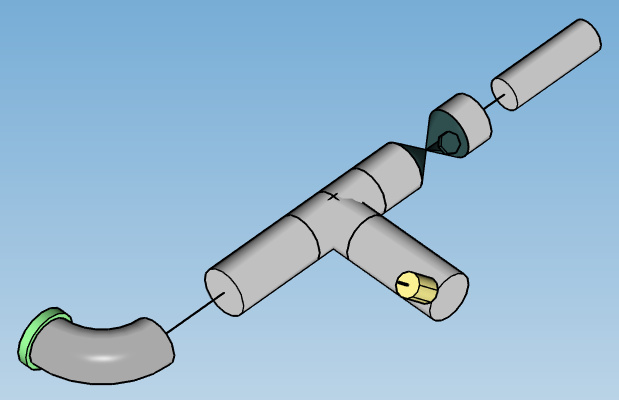
You can undo this command.